How to Create a User Manual: The Complete Guide for Teams
 Jamdesk Team
Imagine your boss pings you: "we need a user manual for the app." Um, ok. You're not even sure who the "user" is, never mind where to begin.
Meanwhile a customer is typing "production just crashed, how do I restart it" into your search box. That "user" doesn't want the project's history. They want the answer now!
Which is why good manuals look like indexes rather than novels.
The fix is to list the jobs customers came to do, write each one as steps, and test those steps on someone who has never seen the product.
In this guide:
- What a user manual is, and how it differs from your API docs.
- Why most manuals fail, and the seven steps that fix them.
- Screenshots, search, testing on strangers, and where to publish.
- Drafting with AI, writing for AI assistants, and keeping the manual accurate after launch.
What a User Manual Is (And What It Isn't)
A user manual tells the person using your product how to do things with it. For example, they may want to know how to set it up, run it, fix it when it misbehaves, or look up the setting they forgot.
Think of a manual as the complete reference: every feature, every setting, every way it can break. It's your product bible.
What about API docs? Both are forms of documentation. The question is which reader you're writing for: someone clicking through your interface needs the manual, someone writing code against your product needs the API reference and SDK guides. Our post on documentation developers actually read is the better starting point for those.
The same feature can often appear in both API docs and a user manual. "Rotate your API key" is a manual page, with a screenshot of Settings. POST /v1/keys and its request schema is an API reference page.
A complete manual has five parts:
| Part | What it answers |
|---|---|
| Limits and safety | What will lose data, break billing, lock you out, or blow through a rate limit |
| Setup | What you need, then signup to first success |
| Tasks | One page per job the customer came to do |
| Recovery | What to do when the product does something unexpected |
| Reference | Settings, permissions, error messages, limits, glossary |
Wanna take a guess which one everybody skips? Recovery. Which is a shame, because recovery decides how full your support inbox gets.
Why Most Manuals Fail Before the First Sentence
Manuals get written as if someone will read them start to finish. In reality, nobody does.
Nielsen Norman Group analyzed 45,237 page views from instrumented browsers back in 2008. On an average visit, users have time to read at most 28% of a page's words, and 20% is the more realistic figure (Nielsen Norman Group, 2008).
For software products, customers generally try to help themselves. Gartner surveyed 5,728 customers and found 73% use self-service at some point in their journey, yet only 14% of customer service and support issues are fully resolved there.
Even on issues customers called "very simple," just 36% were handled in self-service (Gartner, 2024).
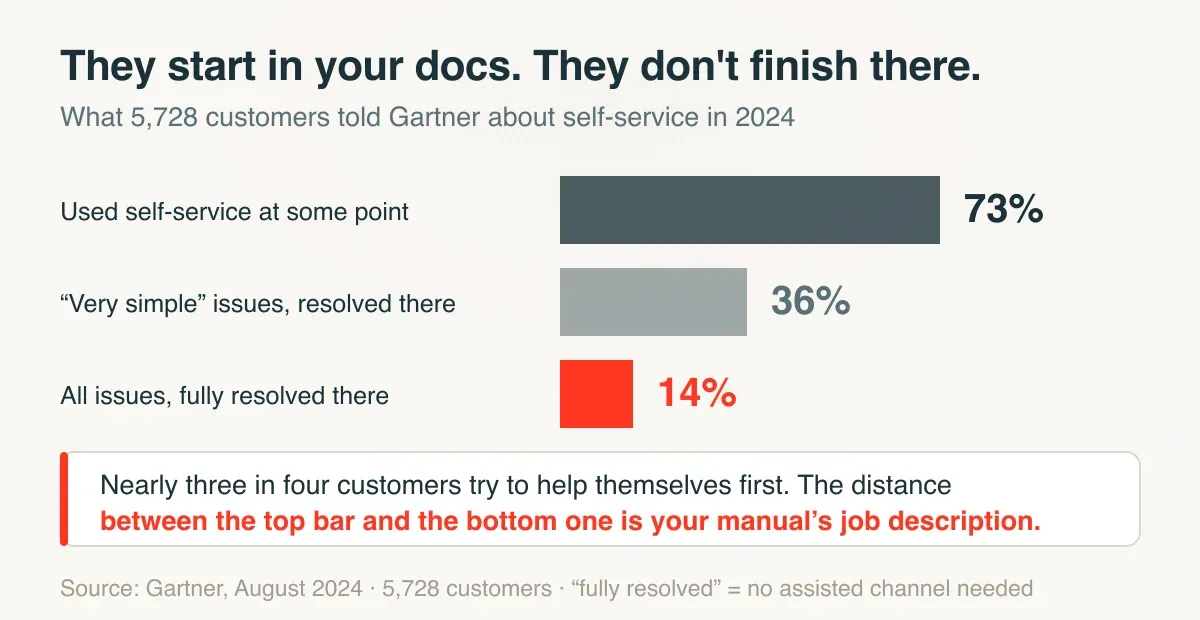
So your manual does its most important work on the day something is broken, for a reader who will probably read it once.
Step 1: Write Down the Jobs, Not the Features
Start by listing every sentence a customer would type into your search box, each starting with a verb. For example, invite a teammate, rotate an API key, export last month's data as a CSV, connect Slack, change the card we bill, or cancel without losing the archive.
That is your list of "jobs" the customer is looking for. Keep the ten most common for now. The rest can wait.
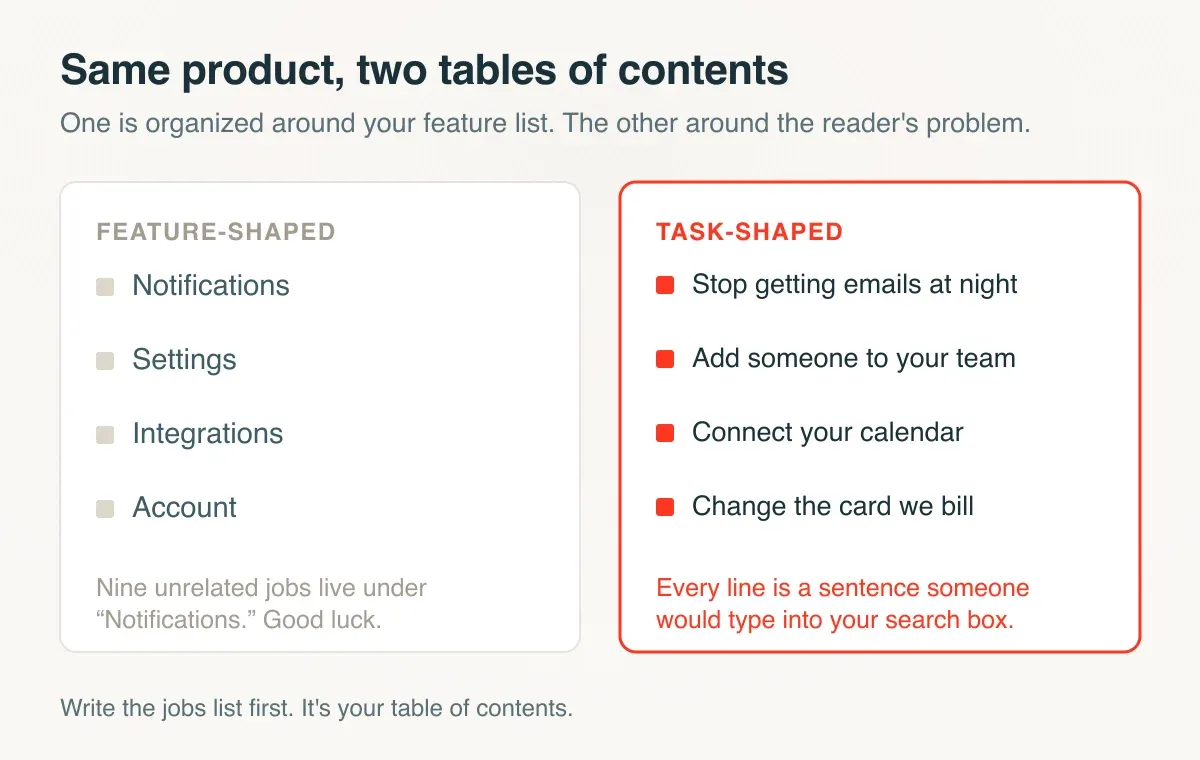
A feature-focused manual has a chapter called "Notifications" listing nine unrelated alerts to search through. A job-focused manual has a page called "Stop getting emails at night," which is the thing the person actually wants.
Then describe your reader as a person, not "our users." This is the classic user persona.
Step 2: Build the Skeleton
Next, take the five parts from the table above and put them in the order a reader needs.
- Limits and safety: everything that can go badly wrong, so list it before they start.
- Setup: what they need first (which plan, which role, an API key), then the path from signup to the first thing that works.
- Tasks: one page per job from your list in Step 1.
Recovery and reference are the parts people come back to later. Title each recovery page by the symptom. Your reader knows sync stopped and that the banner says "Connection expired." They have no idea the OAuth refresh token lapsed, or how to fix it.
Step 3: Write Steps People Can Follow Under Pressure
Manuals usually start failing at the steps. The structure can be right and the steps still impossible to follow.
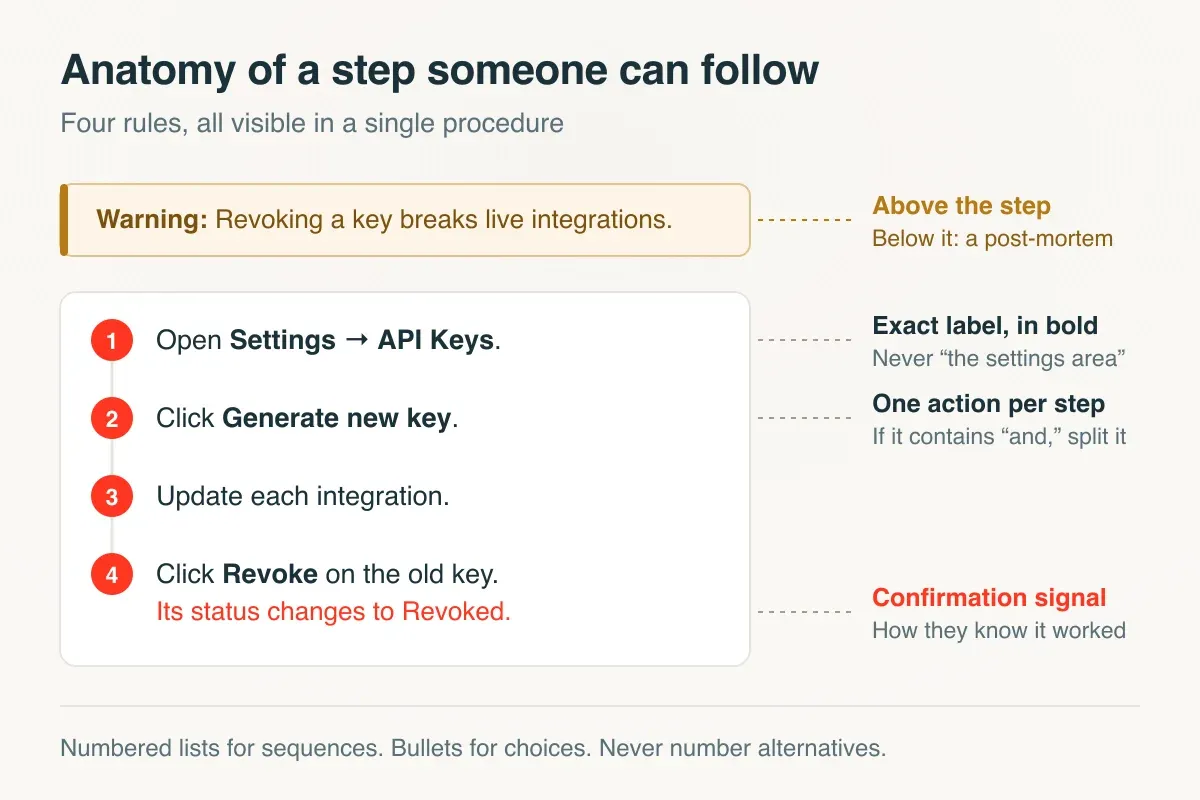
Give each step one action. If a step contains the word "and," it's two steps. It's a good rule, and it fixes more manuals than any other rule here.
Put the condition before the action. "If the banner says Connection expired, click Reconnect" works. Write it the other way around and people click first, then find out the step didn't apply to them.
Tell the reader how they'll know it worked. "Click Save. The banner turns green." Without that second sentence, a save that takes a few seconds looks exactly like a failure.
Name only what the reader can see on screen: the exact button text in bold, and error messages word for word in code formatting. The error text is what people paste into a search box.
Warnings go above the step they protect, never after. Numbers for a sequence, bullets for a choice.
Before:
Generate a new API key and update your integrations, keeping in mind that revoking the old key will immediately sign out any service still using it and that those services may return authentication errors until updated.
After:
Warning: Revoking a key immediately breaks every integration still using it. Update your integrations first.
- Open Settings → API Keys. The list of keys opens.
- Click Generate new key. The new key appears.
- Copy it into each integration.
- Click Revoke next to the old key. Its status changes to Revoked.
If an integration starts returning
401 Unauthorized, see the recovery page for 401 errors after rotating a key.
If your platform has a stepper component, use it: Jamdesk's Steps component renders numbered procedures with per-step anchors, so a support agent can link someone to step 4 specifically.
Step 4: Show the Screen
TechSmith, which sells a screenshot tool, found in its own research that 67% of people completed tasks better with annotated screenshots than with text alone (TechSmith).
A few rules keep screenshots from turning into a mess. Crop tight to the control you're talking about. Use one arrow and one box. A shot that needs two annotations is usually two steps. Take every image in the same demo account, with the same sample data and theme.
Write alt text that carries the instruction. Redact before you publish. Sample data is usually somebody's real data. We wrote up how to blur sensitive parts of a screenshot.
Use video only when the pointer path is the point, like a drag-and-drop builder. Nobody scrubs six minutes of video to re-check a toggle, and none of it is searchable.
For a decision with branches, draw a Mermaid diagram instead. It lives in your source as text and shows up in code review.
Step 5: Make It Findable
Readers search instead of browsing, so the queries that return nothing are your to-do list. Jamdesk lists them under search analytics.
Title your pages in the customer's words. They search for "webhook not firing," not "event delivery diagnostics." And keep each page to one job, so a support agent's link lands on the answer.
Then put entry points to the manual inside the product: a help link in the account menu, empty states that link to setup, and error messages that link straight to the matching recovery page.
Step 6: Test It on Someone Who Has Never Seen the Product
You already know where the button is. That's the whole problem.
Find five people who have never used the product. Give each of them a working account, the manual, and three tasks from your Step 1 list.
Ask permission and record the screen. Then do not say anytning while they work. It's harder than it sounds.
Count the failures. If two of the five stall on the same step, that step is broken. Rewrite it, then run it past two fresh people.
Step 7: Publish Where the Product Is
Your manual needs to be on the web, printable, and versioned. Sooner or later someone asks for each one.
Put the web version first. You can fix a typo in a hosted manual in a minute, while a PDF sits in forty thousand downloads folders forever.
Keep a printable version anyway. Somebody will eventually need the manual as a file, for a procurement review or a customer on a locked-down network.
Generate that PDF from the same source as the web pages, so a stale PDF is only ever a regenerate away. Jamdesk renders the whole site to one PDF from the dashboard on demand with PDF export.
Version it as well. API v3 needs the v3 manual, and the customer who hasn't migrated yet needs the v2 pages to still exist.
Keeping the manual in the same repository as the product gets you most of the way there. Each release then carries its own copy of the manual.
Use AI to Write It, Then Beat the AI Out of It
You're probably going to use AI to help write your user manual. It helps with some of it and does damage on the rest.
It's good at shaping work you already have: turning a rough procedure into proper steps, or mining a support inbox into a task list. It doesn't know what your product does and won't say so.
It will invent a button, or describe another product's settings screen as if it were yours. So walk every generated step through on the real product before it ships.
The longer workflow is in writing docs with AI. The short version is to give the model your rules, your reader, and your real tickets, then make it admit what it doesn't know. Three prompts do that.
First, the table of contents, straight out of Step 1:
Here are our last 100 support tickets. Group them into the tasks
customers were trying to do. Phrase each task as a sentence starting
with a verb, in the customer's own words, never our feature names.
Output a table: task, ticket count, exact phrases customers used.
Sort by count, and ignore pure bug reports. What remains is the
table of contents for a user manual.
Next, the step rewriter, encoding every rule from Step 3:
Rewrite the rough procedure below as numbered steps. Rules: one action
per step (a step containing "and" must be split). Condition before
action: "If the banner says Connection expired, click Reconnect",
never the reverse. Use the exact UI label for every control, in bold.
After each action, state the signal that confirms it worked. Any
warning goes above the step it protects. Where you had to guess a
label or a confirmation signal, mark it [UNVERIFIED] instead of
inventing one.

[paste the rough procedure]
The [UNVERIFIED] rule is the point of the prompt. Every guessed label is a step that needs a human in front of the real screen.
The third prompt is the one we use most. Point it at any drafted page:
Read this page as the reader we defined: an ops manager on day two
of a trial, who has never seen the admin panel and has a migration
deadline this week. List every point where you had to guess: a term
never defined, a step that assumes a state an earlier step didn't
create, a control you couldn't locate from the description alone.
Don't rewrite anything. Quote the exact sentence that made you
guess, and say what you guessed.
Then take the AI voice back out. Cut hedging where an instruction should just instruct ("you may want to click Save"), and any step that only restates its heading. Replace "after a short while" with a number.
Humanizer, an open-source Claude Code plugin, does a first pass at this without changing what the text says.
Your Manual Has a Second Audience Now
Your customer increasingly doesn't open your manual at all. They ask an AI assistant, and the assistant opens your manual.
In Stack Overflow's 2025 survey, 84% of developers were using AI tools or planning to, and the top complaint, from 66% of them, was answers that are "almost right, but not quite" (Stack Overflow, 2025). An assistant that can't read your manual cleanly guesses, and the guess is almost right.
Writing for the assistant is mostly the same discipline as writing for the person, plus:
- Serve each page as plain markdown as well as HTML. Markdown is a fraction of the size, and a manual locked inside a PDF behind a login is invisible.
- State versions and dates. "Applies to v2.4 and later, updated August 2026" stops an assistant confidently quoting a procedure you retired in 2023.
- Publish an
llms.txt, a map of your docs written for models. Jamdesk generates one per project (llms.txt).
Designing docs for AI agents goes deeper, including how many bytes the same page weighs as HTML versus markdown.
Start With Ten
Start with the top ten jobs your customers do. Write each one as steps somebody can follow with your app misbehaving in one tab and the manual open in the other. Publish it somewhere you can fix in a minute.
If your product has one screen and five settings, a README and a short video will do. Past that, you'll want a docs site.
Jamdesk publishes from markdown in your repo, exports the whole site as one PDF, translates into 27 languages, and serves machine-readable source for the assistants now reading your docs on your customers' behalf. Flat $29/month, unlimited team members.